Menu bar — train without giving up your screen
WattLog.pro lives in your macOS menu bar. While you ride, your current heart rate, power and cadence are visible at the top of the screen at all times — ♥ 103 ⚡ 117 ↻ 75 — updating every second.
Click the menu bar icon and a compact dropdown shows HR, Power, Cadence and Grade in large, colour-coded numbers. That's it. Then you can go back to whatever you were doing. Grade appears in the dropdown only — the strip stays clean with three numbers.
This means you can train while watching a film, a YouTube video, reading — anything. No virtual worlds competing for your attention. No mandatory screen. WattLog.pro records everything in the background; you get the full analysis after the ride.
Every other indoor training app requires you to watch the app. WattLog.pro doesn't.
Live session data
While you ride, WattLog.pro shows power (W), heart rate (bpm), cadence (RPM), current power zone, interval timer, and elapsed time — all updated in real time. The interface is designed to be readable at a glance from a trainer position, with large numbers and high contrast.
Power zones are colour-coded using the Coggan 7-zone model, so you can see at a glance whether you're in the right zone without taking your eyes off the road (or the wall in front of you).
Automatic FTP detection
FTP (Functional Threshold Power) is the foundation of every power-based metric. WattLog.pro estimates it from your actual ride data using a best-20-minute power algorithm — no dedicated test ride needed, no guessing. After every ride it checks whether you have improved and, if so, suggests the new number — one click to accept it.
If you already know your FTP, you can set it manually. The auto-detection runs in the background and will suggest an update when it has enough data.
Post-ride analysis
Every session produces a report with the metrics that actually matter:
WAPWeighted Average Power: the steady power that would cost your body the same as this ride, surges included. · Weighted Average Power How hard the ride really was, surges included. Learn more
A better measure of effort than average power: it accounts for the cost of surges and variability, so a punchy ride isn't scored like a steady one.
RIRelative Intensity: how hard the ride was compared with your FTP. 1.0 means riding at threshold. · Relative Intensity That effort, measured against your FTP. Learn more
How hard the ride was relative to your FTP. RI 0.75 is a recovery spin; RI 1.05 is a hard threshold effort.
TLSTraining Load Score: one number for how much training a ride gave you. One hour at your FTP scores 100. · Training Load Score One number for how much training the ride gave you. Learn more
The total load of the session, combining duration and intensity. Comparable across rides of different length and intensity, and the input to your Fitness and Fatigue.
Cardiac drift Did your heart rate climb while power held steady? Learn more
Heart rate drifting up against steady power means your aerobic system was stressed. Low drift means the ride was well within its limits — and a falling trend over weeks means your endurance is improving.
Time in zones Minutes spent in each of the 7 power zones. Learn more
Exactly how many minutes you spent in each zone, so you can check that an endurance ride stayed easy and an interval session actually reached the target zone.
Power records Your best 1, 5, 20 and 60 minutes — flagged when they're new. Learn more
Best 1-minute, 5-minute, 20-minute and 60-minute power from the session, flagged when any of them is an all-time record.
Every metric has a plain-English explanation built in. Tap any number to understand what it means and whether your result was good, neutral or something to pay attention to.
Recovery intelligence — your body talks, WattLog.pro listens
WattLog.pro monitors your training stress continuously and flags when your body needs a break. If you haven't had a proper recovery window in two weeks, the app tells you directly:
Plan 2–3 easier days this week to consolidate the fitness you have built.
This isn't a generic reminder. The alert fires based on your actual Fatigue and Fitness data — it appears when fatigue has been accumulating without a real drop, meaning the fitness you've built is at risk of stalling or reversing.
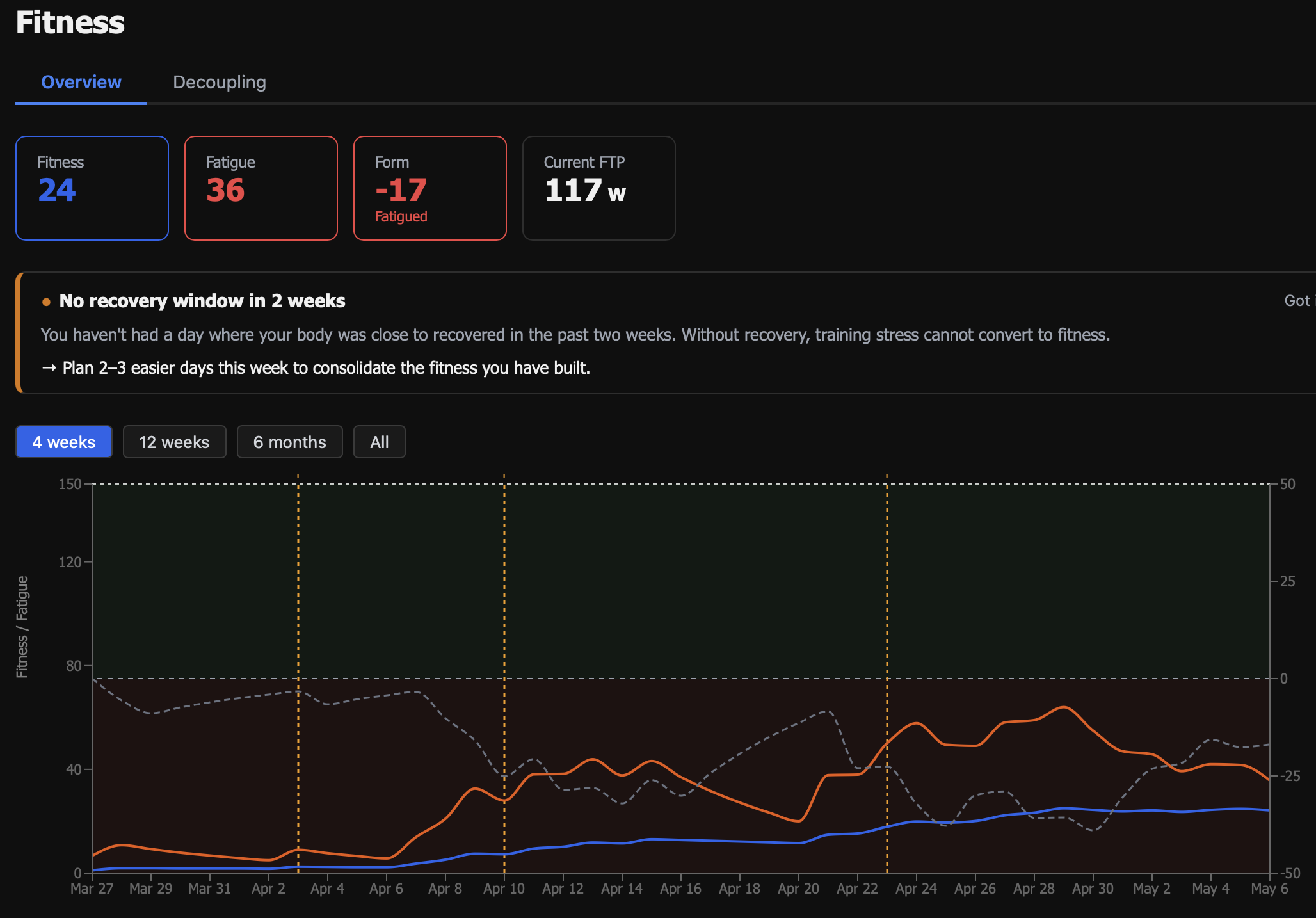
The same intelligence surfaces in the Dashboard view alongside your weekly summary, active challenges and cardiac drift trend — everything in one place, no separate app or manual log needed.
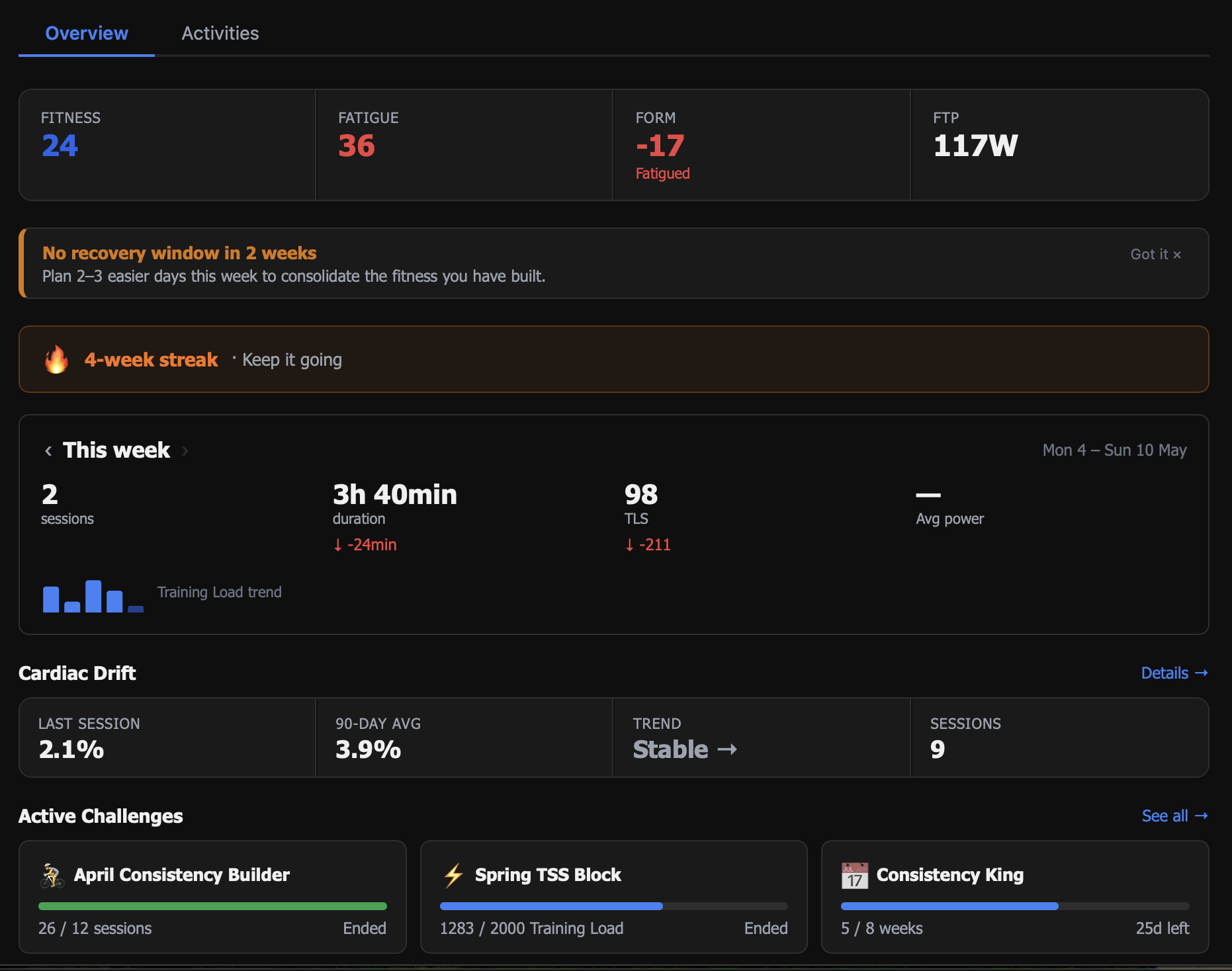
Fitness Management Chart
The Fitness Management Chart shows three numbers across a rolling timeline:
- Fitness — the weighted average of your TLSTraining Load Score: one number for how much training a ride gave you. One hour at your FTP scores 100. over the past 42 days. Higher is generally better, but it takes weeks to build.
- Fatigue — the weighted average over the past 7 days. Spikes when you train hard.
- Form — Fitness minus Fatigue. Positive means fresh; negative means fatigued. The art of training is managing the gap.
The Fitness Management Chart is the single most useful view for understanding whether your training is working. WattLog.pro builds it automatically from your session history — no manual input required.
Your data, always yours
Bring files in, take everything out. Standard formats both ways, no lock-in.
Virtual rides from GPX files
Any GPX file — a route you downloaded, a road you mapped yourself, a famous climb — can be turned into a virtual ride. Load the file into WattLog.pro and your trainer will follow the elevation profile automatically, increasing and decreasing resistance as the gradient changes.
This means you can ride Alpe d'Huez, your local favourite, or a stage of the Tour de France — all without leaving your pain cave. No subscription to a virtual world required.
Import activities from TCX files
Already have a library of indoor rides from another app or a Garmin device? Import them as .tcx files and WattLog.pro will pull them into your history — power, heart rate, cadence, the works. Your PMCPerformance Management Chart: fitness, fatigue and form, week by week., TLSTraining Load Score: one number for how much training a ride gave you. One hour at your FTP scores 100. and all long-term analytics will reflect your full training history, not just the sessions recorded in WattLog.
Useful if you're switching from another platform and don't want to start from scratch, or if you occasionally train on a different device and want everything in one place.
Export to TCX and FIT
Every session can be exported as TCX or FIT — the standard formats used by Garmin Connect, Strava, TrainingPeaks and every other platform. If you ever want to leave WattLog, you take everything with you.
We don't believe in data lock-in. Export works on every plan, including the free Founding Rider tier.